How to Make a Before-and-After Glow-Up Video on iPhone
Three ways to turn your progress photos into a before-and-after glow-up video on iPhone, plus the shooting and editing tips that make a transformation pop.
On this page
A glow-up video turns weeks of photos into a few seconds everyone understands: this is where I started, and this is where I am now. On iPhone you can make one in minutes, as long as your photos are consistent.
Here are three ways to make a before-and-after glow-up video on iPhone, from fully automatic to fully manual, plus the editing tips that make a transformation pop.
Before you edit: the photos make the video
No editing trick can fix photos taken in different rooms, light and poses. The video will flicker between backgrounds and the change you want people to see gets lost. So before you open an editor:
- Use photos taken the same way. Same spot, same light, same distance and the same pose. Our guide to taking progress photos that actually show change covers the setup.
- Pick one angle per video. A front-only video is easier to follow than one that jumps between front, side and back.
- Shoot in portrait. TikTok, Instagram Reels and YouTube Shorts are all vertical.
- Crop old photos to match. If your early photos weren’t consistent, crop them so your head and feet sit at the same height in every frame.
Method 1: Let Glow Up Diary cut the film for you
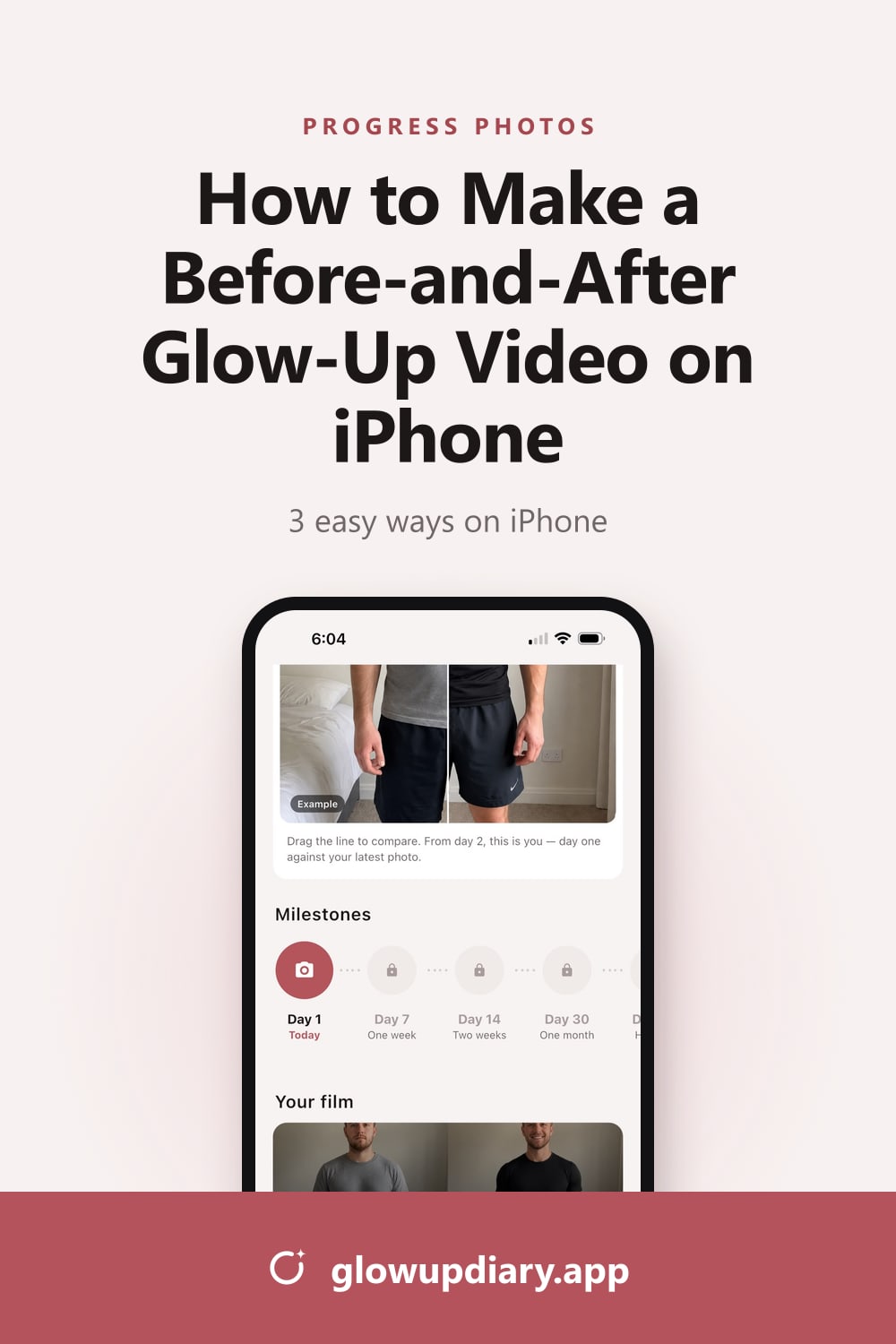
If you take your daily photos in Glow Up Diary, the video makes itself.
- Take your photos every day. Front, side and back, about a minute a day.
- Your film unlocks at day 7. Once you have a week of photos, the film is cut from your own days, and it grows with every photo until day 90.
- Pick a style. Cinematic (slow and scored), Clean (natural, silent) or Bold (fast and punchy).
- Share it. With Glow Up Pro, your film has no watermark and it’s yours to share.
Best for: a day-by-day film with zero editing.
Method 2: iMovie’s Magic Movie (free)
iMovie is Apple’s free video editor, and its Magic Movie feature can turn an album of progress photos into a video in date order.
- Make an album. In the Photos app, create an album and add your progress photos from one angle, such as the front.
- Start a Magic Movie. Open iMovie, tap Start New Project, then tap Magic Movie.
- Choose the album. Tap your album, then tap Create Magic Movie in the center of the screen. iMovie adds everything in the album in chronological order (Apple Support).
- Make it yours. Rearrange or remove photos, change the style, and add titles like “Day 1” and “Day 90”.
- Save it. Share the finished movie as a video file, then post it.
Best for: a free day-by-day video, if you don’t mind a few minutes of setup.
Method 3: A two-photo reveal in any video editor
The classic glow-up reveal needs just two photos. It works in CapCut, Instagram’s Reels editor, TikTok’s editor or iMovie.
- Start a vertical project (9:16).
- Add your Day 1 photo, then your latest photo.
- Make each one 1 to 2 seconds long.
- Cut between them on the beat of your sound, with a hard cut or a quick wipe.
- Add text labels: “Day 1” and “Day 90”, or the dates.
- Export and post.
Best for: a quick, punchy reveal.
Editing tips that make a glow-up video pop
- Line everything up. Your eyes and your feet should sit at the same height in every photo, so the only thing that changes is you.
- Use the same crop and zoom throughout. Zooming in on the “after” photo makes it look like a different shot.
- Label the days. “Day 1” and “Day 90” tell the story instantly, with or without sound.
- Show the journey, not just the ends. Day 1, day 30, day 60 and day 90 is more convincing than two photos.
- Keep it honest. Use the same light and no filters on the “after” photo. If the light changed, it isn’t a glow up, it’s a lighting upgrade.
- Get to the reveal fast. Viewers scroll quickly, so don’t make them wait.
Before you post: a quick privacy check
- Check the background. Look for mail, documents, the view from your window, family photos and mirrors.
- Remove your location. When you share from Photos on iPhone, tap Options at the top of the share sheet and turn off Location.
- Decide what you’re comfortable showing. You can crop out your face and still show the change.
Where to share it
The same vertical video works on TikTok, Instagram Reels and YouTube Shorts. On Pinterest, a tall before-and-after image and a short video both do well. Use words people search for, like “glow up”, “before and after” and “90-day transformation”, in your caption.
Frequently asked questions
What app makes glow-up videos?
Glow Up Diary builds a film automatically from your daily photos, starting at day 7. You can also use iMovie's free Magic Movie, or any video editor that lets you place photos on a timeline, such as CapCut or the editors built into Instagram and TikTok.
How do I make a before-and-after video with just two photos?
Put your Day 1 photo first and your latest photo second, cut between them on a beat in the music, and add text labels like “Day 1” and “Day 90”. Keep both photos the same size and framing.
How long should a glow-up video be?
Short. A few seconds for a two-photo reveal, or roughly 10 to 30 seconds for a day-by-day film. Viewers should reach the reveal quickly.
What size should a glow-up video be for TikTok and Reels?
Vertical, in a 9:16 ratio (1080 × 1920 pixels is the usual size). Take your progress photos in portrait so they fill the screen.
How do I make my photos line up?
Take them the same way every time: same spot, phone height, distance and pose, with tape marks on the floor. Lining photos up afterwards is much harder than taking them consistently.
Sources
- Create a Magic Movie project in iMovie on iPhone. Apple Support